Aiuto
Questa è una breve introduzione all'uso di Phaidra e alle sue funzioni di navigazione, di ricerca e di creazione degli oggetti digitali.
Per sapere cos'è Phaidra e conoscere le sue caratteristiche, consulta la pagina Informazioni.
Per l'utilizzo dei documenti archiviati in Phaidra, vedi le condizioni d'uso.
Ti serve aiuto?
Per ricevere supporto o segnalare malfunzionamenti, contattaci.
Esplorare
Navigare in Phaidra
Ci sono vari modi per esplorare i contenuti di Phaidra. Partendo dall'home page si può entrare nelle ultime collezioni aggiunte, accedere all'elenco di tutte le collezioni, fare una ricerca libera o entrare nella pagina di ricerca per impostare dei filtri.
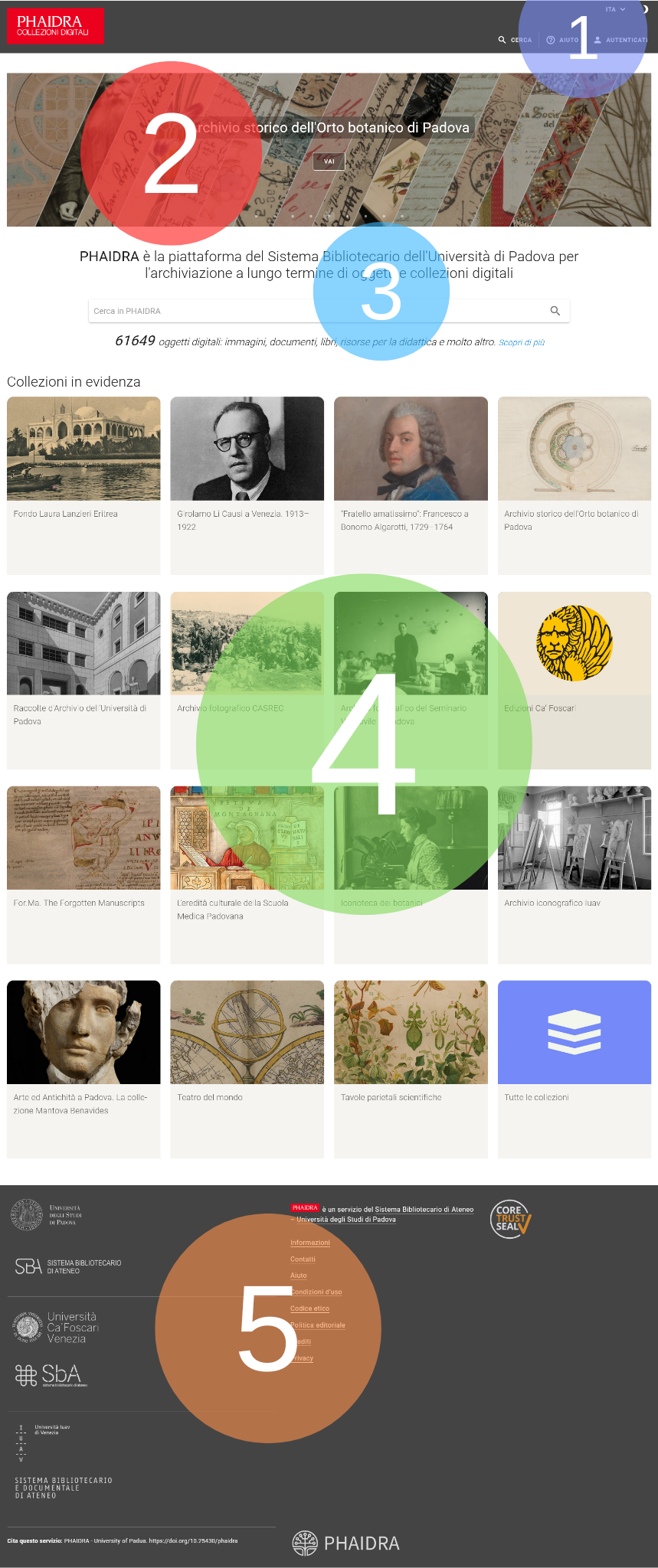
Conviene quindi familiarizzare con le diverse aree che si presentano in home page. A partire dall'alto:
- il menù di navigazione (Lingua, Cambia stile, Cerca, Aiuto, Autenticati) posizionato in alto
- una galleria a scorrimento di immagini rappresentative di alcuni dei più interessanti contenuti presenti in Phaidra
- la maschera di ricerca
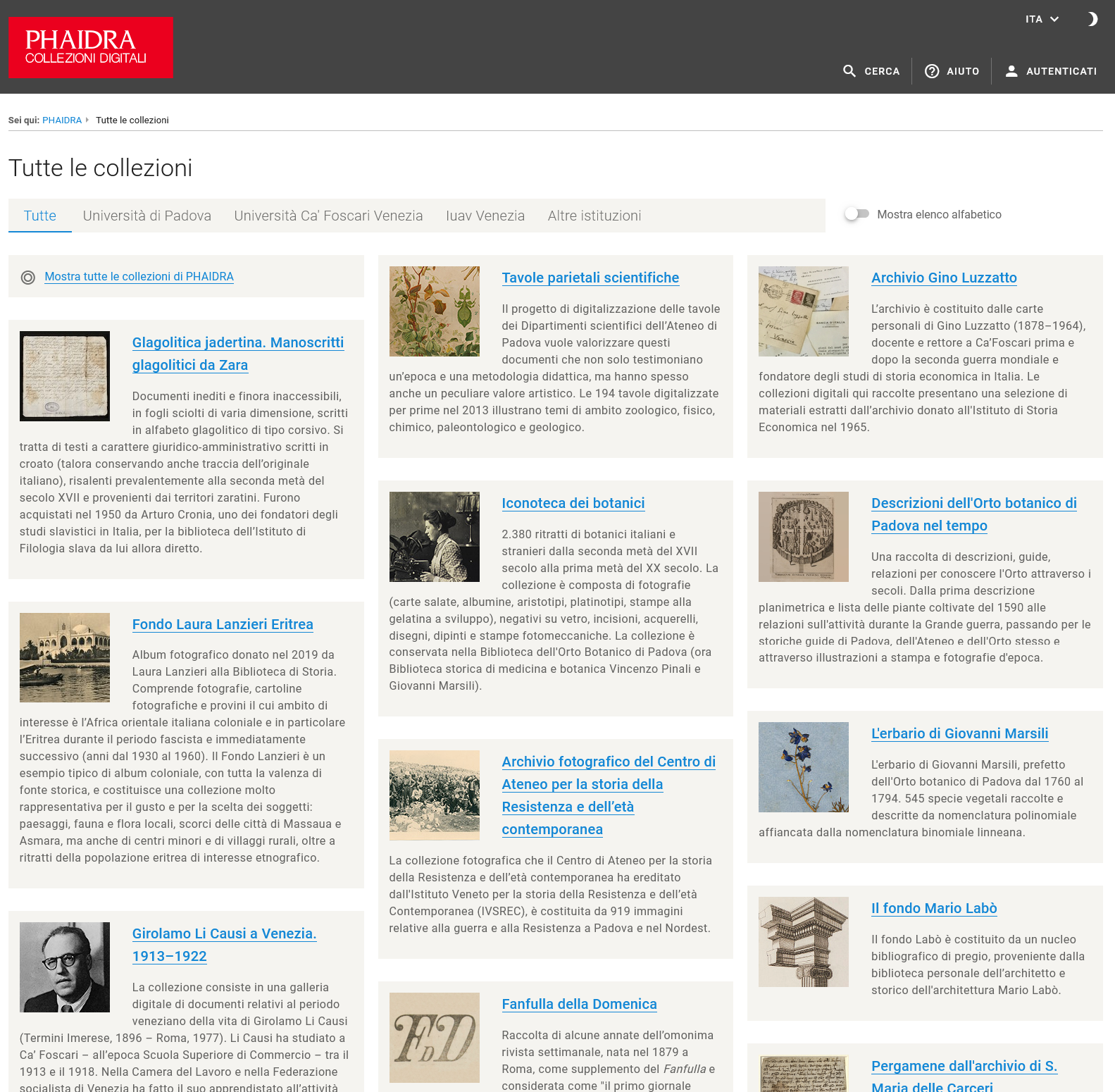
- la sezione "Collezioni in evidenza", che mostra le ultime collezioni aggiunte, alcune collezioni particolarmente significative e il link alla pagina che elenca tutte le collezioni
- nel piè di pagina, i collegamenti ai siti delle istituzioni principali che forniscono contenuti, ai contatti, alle condizioni d'uso del sito e ad altre pagine informative su Phaidra
Menù di navigazione

Lingua (ITA/ENG)
Per impostare la lingua dell'interfaccia di Phaidra, scegliendo tra l'italiano e l'inglese.
Cambia tema ( /)
Consente di passare da un aspetto del sito a tinte scure (l'aspetto predefinito) a uno a tinte chiare.
Cerca
Consente di accedere alla pagina di ricerca.
Aiuto
Apre la pagina di Aiuto.
Autenticati
Permette di inserire il codice utente e la password di accesso a Phaidra per utilizzare le funzioni riservate agli utenti registrati come la creazione di oggetti o modelli.
Quando si è autenticati in Phaidra, il menù di navigazione cambia:

Account ()
Mostra il nome dell'account con il quale si è autenticati. Cliccando sulla freccia accanto al nome hai la possibilità di scollegarti.
Crea oggetto, I miei oggetti, Preferiti, Modelli
Conducono alle corrispondenti funzioni.
Ricerca
Puoi cercare una o più parole. Sia l'uso di lettere maiuscole e minuscole sia l'ordine delle parole sono ininfluenti.
L'operatore AND è l'operatore di congiunzione predefinito. Ciò significa che, se tra due termini non è presente alcun operatore booleano, viene utilizzato l'operatore AND. L'operatore AND collega due termini e individua un documento corrispondente se entrambi i termini sono presenti nel documento.
Il carattere * (asterisco) può essere usato all'inizio o alla fine di una parola per il troncamento, oppure al suo interno per mascherare uno o più caratteri. Esempi:
- *est trova est, test, Budapest, ecc.
- sac* trova sacco, saccardo, sacro, ecc.
- d*e trova ditte, date, due, ecc.
- b*anc* trova bianco, biancospino, branca, branchia, ecc.
Il carattere ? (punto interrogativo) può essere usato all'inizio, all'interno o in fine di parola per mascherare al più un carattere. Esempi:
- sac?o trova sacco, sacro, ecc.
- test? trova testa, testi, test, ecc.
- ?ampo trova campo, lampo, ecc.
L'operatore logico NOT può essere usato per escludere una parola dalla ricerca. Esempio:
pesce NOT carpa trova i risultati che contengono "pesce" ma non contengono "carpa"
L'operatore logico OR può essere usato tra due o più termini per abbinare le ricerche. Esempio:
opere OR manifesti trova i risultati che contengono "opere" oppure "manifesti" oppure entrambi
Per cercare una frase esatta, ad esempio il titolo di un libro, si può racchiudere il testo tra due caratteri " (doppie virgolette). Esempi:
- "2: Suffisso d'origine ligure in -mo, -ma nelle voci Balma, Calmus ed altre"
- "Codice Diplomatico Padovano di Giovanni Brunacci - Tomo I (BASVPd Cod. 581.1)"
Dalla pagina di ricerca è inoltre possibile raffinare i risultati. La ricerca ti permette, infatti, di filtrare gli oggetti di Phaidra attraverso una serie di categorie visibili nella colonna "Filtri": Accesso ristretto o aperto, Tipo di risorsa, Dimensione del file, Licenza attribuita all'oggetto, Data di caricamento, Istituzione di riferimento, Autore dell'oggetto, Ruolo per filtrare sulla base di persone o enti collegati all'oggetto da ruoli diversi rispetto al ruolo "autore". Gli utenti autenticati possono anche filtrare per Proprietario, cioè l'account utente di Phaidra che ha creato l'oggetto in Phaidra.
La categoria "Tipo" si presenta aperta per impostazione predefinita; per vedere i filtri applicabili alle altre categorie devi invece selezionare la categoria di tuo interesse.
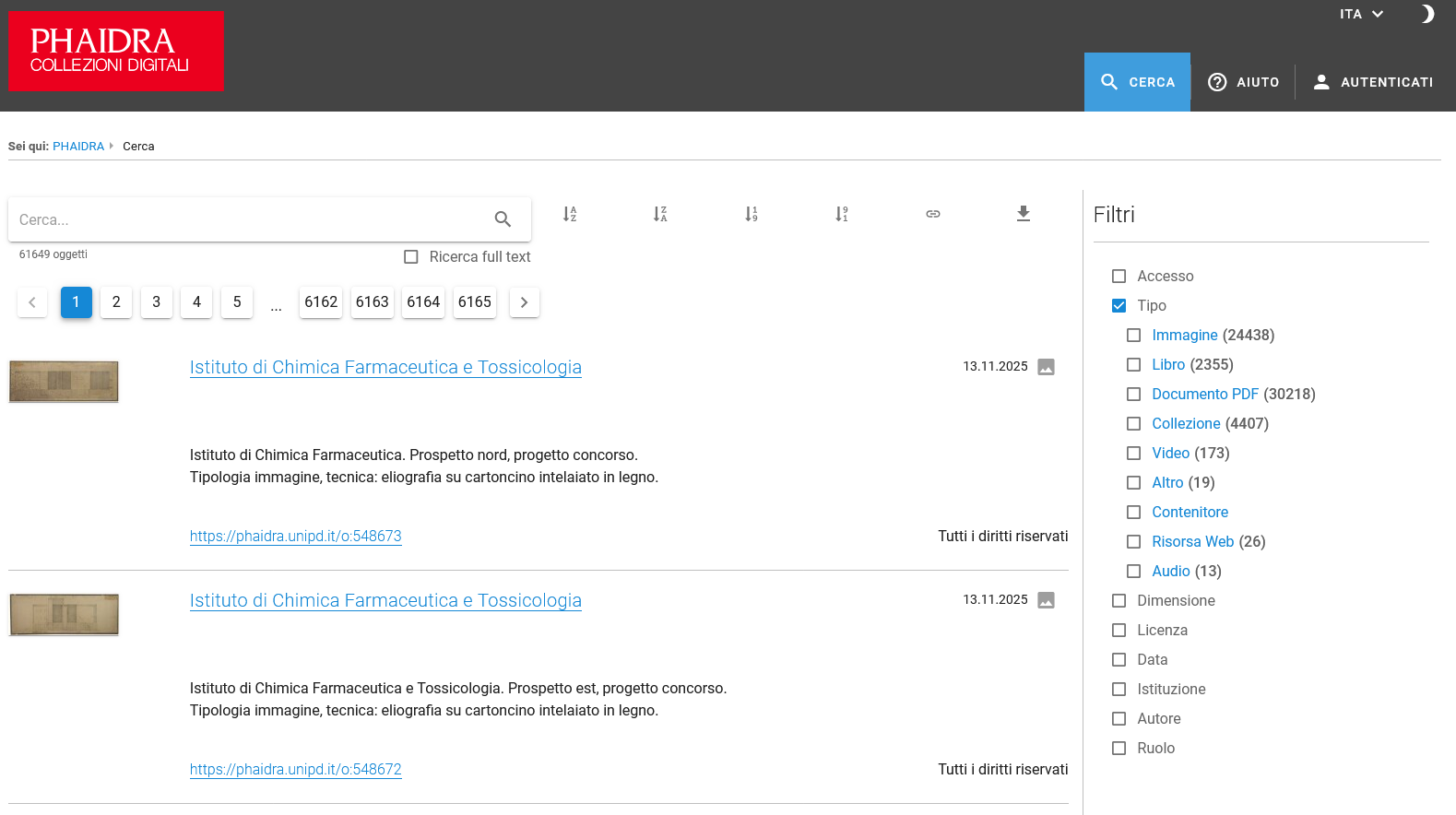
I filtri applicati funzionano con l'operatore booleano AND se si utilizzano filtri appartenenti a categorie diverse e in OR se si selezionano filtri appartenenti alla stessa categoria. Esempi:
- Tipo: Immagine; Dimensione: 200-500 MB trova le immagini di dimensione compresa tra i 200 e i 500 MB.
- Tipo: Immagine; Tipo: Libro trova sia i libri sia le immagini.
Accanto a ogni filtro applicabile è presente, tra parentesi, il numero di oggetti esistenti sulla piattaforma che corrispondono a quella categoria. Il numero si modifica quando viene applicato un nuovo filtro in base al funzionamento sopra descritto.
La categoria "Ruolo" non è un vero e proprio filtro: permette di selezionare il ruolo di interesse (es. "Editore") e di digitare il nome della persona o dell'ente che si vuole ricercare (es. "Ulrico Hoepli" per trovare tutti gli oggetti in cui Ulrico Hoepli sia registrato come editore).
Per rimuovere un filtro deseleziona il quadratino che compare alla sinistra del suo nome nella colonna "Filtri"; l'opzione "Rimuovi filtri" elimina tutti i filtri applicati fino a quel momento.
Per impostazione predefinita i risultati della ricerca sono ordinati per rilevanza, ma puoi selezionare un criterio di ordinamento differente utilizzando le icone accanto alla maschera di ricerca: Titolo ascendente, Titolo discendente, Data di caricamento ascendente, Data di caricamento discendente.



Una volta selezionati, i risultati possono essere aggiunti (o rimossi) a un elenco di preferiti o a una collezione.
Se spunti la casella "Ricerca full text", puoi cercare anche all'interno del full text dei documenti.
Descrizione completa dell'oggetto digitale
La pagina di dettaglio dell'oggetto digitale si presenta divisa in due colonne: sulla sinistra sono visibili un'immagine dell'oggetto e i suoi metadati, sulla destra sono presenti vari riquadri contenenti ulteriori dettagli sull'oggetto e alcune funzionalità integrative.

L'anteprima viene mostrata con un visualizzatore differente a seconda della tipologia di risorsa dell'oggetto digitale (Immagine, Video, Documento PDF, Altro). Sotto l'immagine è disponibile il pulsante "Apri in una nuova finestra".
I metadati presenti nella colonna di sinistra sono composti da un'etichetta che qualifica il tipo di informazione e dal valore corrispondente. La presenza dei singoli campi dei metadati dipende da come è stato descritto l'oggetto. Per una spiegazione puntuale puoi consultare la pagina Elenco dei campi dei metadati.
I riquadri nella colonna di destra forniscono informazioni ulteriori e di contesto dell'oggetto digitale, pongono in risalto alcuni dati, permettono di scaricare il file ed esportare i metadati:
- Cita questo oggetto: contiene l'URL permanente dell'oggetto in Phaidra e il suo identificatore persistente Handle, che possono essere usati per citare l'oggetto.
- Altri identificatori: il riquadro è presente se all'oggetto sono stati assegnati altri identificatori (ad esempio: DOI, ISBN, ecc.).
- Contenuto: contiene il link per il download dell'oggetto e, nel caso di oggetti di immagini, due link che consentono di visualizzare l'oggetto a scale differenti.
- Diritti: presenta la licenza attribuita all'oggetto digitale con il link alla sua definizione completa ed eventuali informazioni aggiuntive relative ai diritti. La licenza esprime le condizioni di riuso dell'oggetto.
- Dettagli: nome e contatto dell'istituzione o della persona che ha creato l'oggetto (ente o persona di riferimento) e informazioni su tipo di risorsa, formato del file, data di creazione dell'oggetto digitale in Phaidra.
- Statistiche di utilizzo: numero di visualizzazioni e di download dell'oggetto digitale.
- Versioni: il riquadro è presente se esistono diverse versioni di un oggetto digitale. Contiene il link alla versione e la data della sua creazione.
- Fa parte della collezione / Questo oggetto ha verso / Questo oggetto è in relazione: questi riquadri, se presenti, forniscono informazioni di contesto sull'oggetto digitale, come la sua appartenenza a una o più collezioni, la presenza di un verso (o di un recto), l'esistenza di altri oggetti in relazione con esso.
- Metadati: comprende i link per visualizzare i metadati in formato XML o JSON-LD. Nel caso di immagini è disponibile anche il link al Manifest IIIF.
- Esportazione metadati: permette di esportare i metadati secondo diversi standard (Dublin Core, DataCite, LOM – Learning Object Metadata, EDM – Europeana Data Model, OpenAIRE).
- Modifica: il riquadro è disponibile solo sui propri oggetti quando si è autenticati. Da qui è possibile modificare i metadati, aggiungere l'oggetto a una collezione esistente, creare un oggetto correlato, modificare i diritti di accesso, aggiungere o rimuovere le relazioni tra questo e altri oggetti.
Visualizzazione di un libro
I libri sono visualizzati attraverso Mirador, un visualizzatore che supporta il protocollo IIIF e che permette di sfogliare il libro. Il visualizzatore è incorporato nella pagina di dettaglio dell'oggetto e visualizzabile a schermo pieno tramite il pulsante "Apri in una nuova finestra".
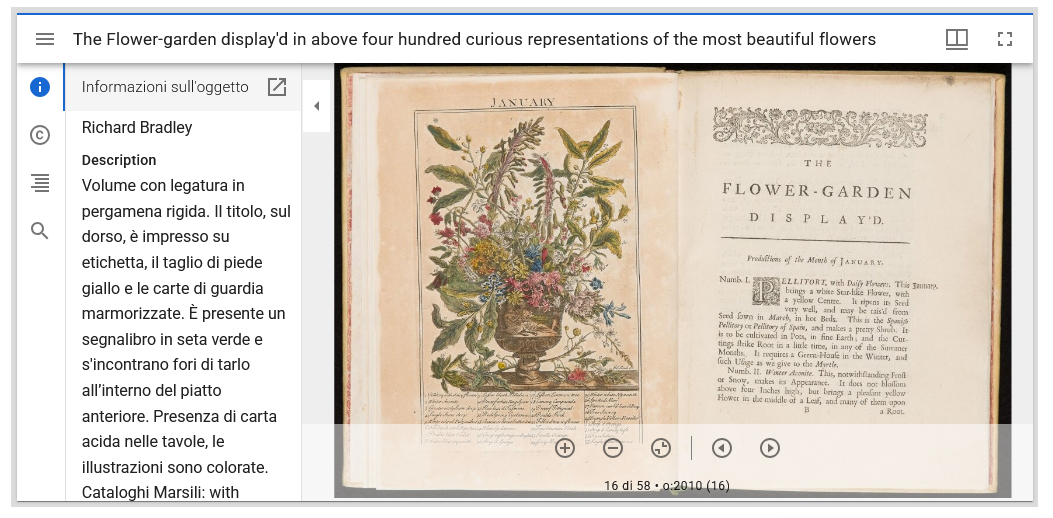
Sulla sinistra del visualizzatore sono presenti alcuni pulsanti che aprono schede differenti:
- Informazioni: contiene i metadati principali dell'oggetto, informazioni sulle pagine che si stanno visualizzando in quel momento, il link alla pagina di dettaglio dell'oggetto e al Manifest IIIF del libro.
- Diritti: contiene la licenza assegnata all'oggetto digitale.
- Indice: consente di navigare tra i diversi capitoli, o parti del libro, se è stato creato un indice.
- Cerca: per cercare nel testo completo del libro. Compare solo per i libri dotati di OCR.
Visualizzazione di una collezione
La collezione è anch'essa un oggetto digitale e, come tale, è dotata di metadati, identificatori persistenti, relazioni.
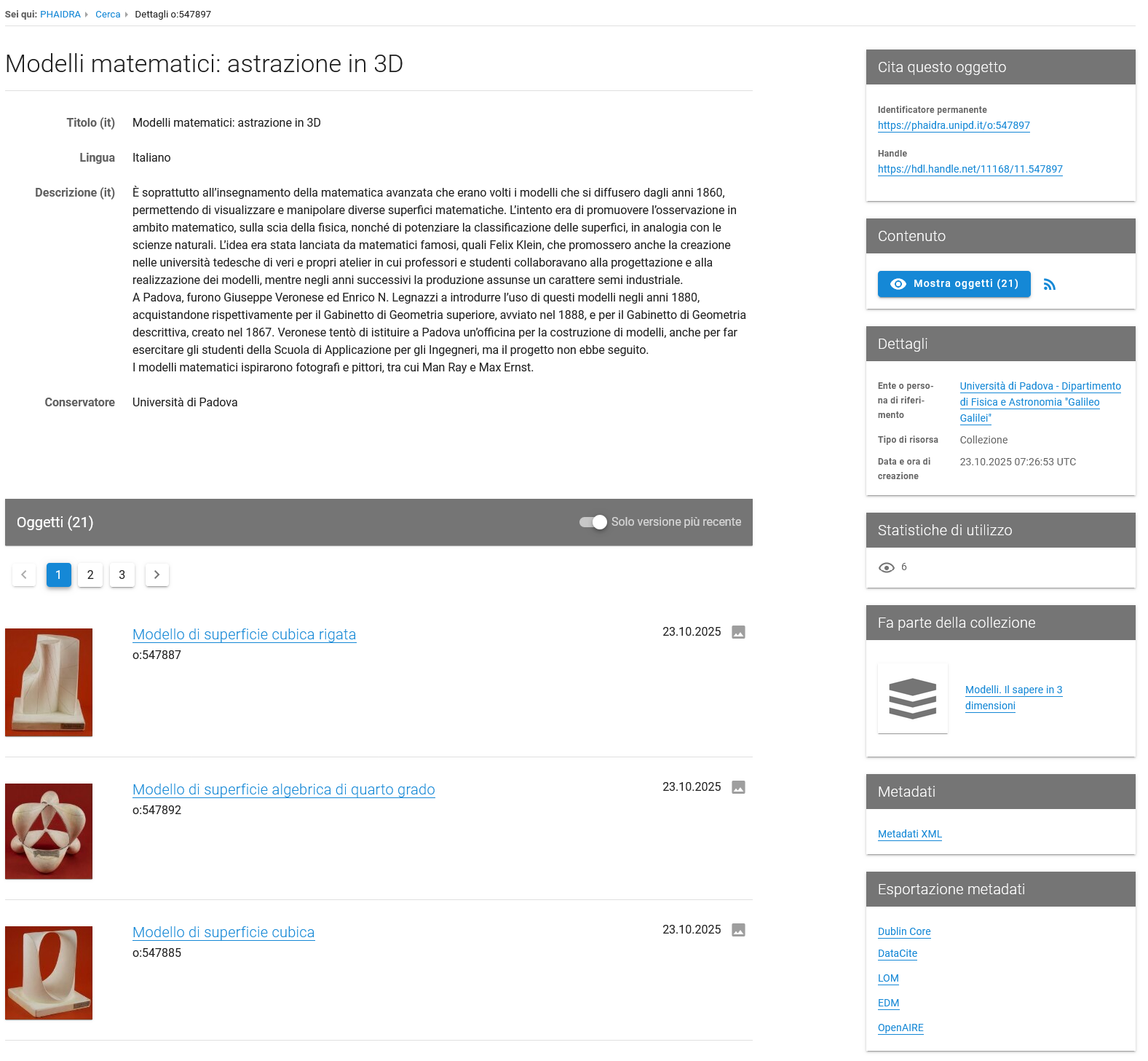
La visualizzazione di una collezione è simile a quella di un oggetto singolo, ma i metadati si trovano in testa e sono seguiti dall'elenco degli oggetti appartenenti alla collezione. Per ogni oggetto della collezione sono visibili anteprima (o icona del tipo di risorsa), titolo, identificatore dell'oggetto in Phaidra, data di creazione. Cliccando sul titolo o sull'immagine di anteprima di un oggetto puoi raggiungere la pagina di dettaglio dell'oggetto.
I riquadri presenti nella colonna di destra sono gli stessi presenti negli oggetti singoli, ma il riquadro "Contenuto" contiene il pulsante "Mostra oggetti" che conduce a una maschera di ricerca che ti permette di cercare solo tra gli oggetti della collezione.
Archiviare
Ci sono due destinazioni in cui puoi archiviare gli oggetti:
- Phaidra: per rendere pubblici gli oggetti.
- Phaidra Sandbox: per provare le funzionalità di Phaidra.
Autenticazione
Per autenticarti devi essere in possesso di un account Phaidra (username e password). Contattaci se ti servono le credenziali di autenticazione.
Autenticandoti in Phaidra puoi usufruire delle funzioni riservate all'utenza registrata: creare oggetti digitali, modificare i metadati dei tuoi oggetti, riunire gli oggetti in collezioni, creare e modificare le relazioni tra oggetti, creare modelli, creare elenchi di preferiti e gestire i diritti di accesso ai tuoi oggetti. La possibilità di eliminare i tuoi oggetti digitali è attiva solo in Phaidra Sandbox.
Formati dei file
Quali formati di file accetta Phaidra? E quali formati sono da preferire?
Phaidra accetta qualunque formato. Per ciascun tipo di risorsa (immagine, video, audio, ecc.) solo alcuni
formati sono supportati; per quelli che non lo sono, si consiglia la conversione in un formato supportato.
Qualora ciò non fosse possibile, al momento del caricamento dell'oggetto, devi scegliere il tipo di
risorsa "Altro".
La scelta del formato è importante per le implicazioni sulla conservazione a lungo termine nonché
sull'accesso via web. In particolare, per l'archiviazione a lungo termine, sono da preferire formati di
largo utilizzo, che abbiano caratteristiche di apertura, portabilità, trasparenza e
auto-documentazione.
Non esistono criteri assoluti nella scelta dei formati. La scelta è sempre dipendente da differenti valutazioni che chi archivia dovrà fare puntualmente, caso per caso, e risulterà spesso in un compromesso tra la miglior qualità ottenibile e i limiti imposti dai costi di produzione, elaborazione e stoccaggio dei file, nonché – per il pregresso – dall'opportunità di una conversione in nuovo formato.
Come aiuto ragionato alla scelta del formato di file da preferire per i vari tipi di risorsa di Phaidra, puoi consultare la pagina Formati dei file.
Creare un oggetto
Dall'interfaccia di Phaidra puoi creare i seguenti tipi di risorsa: Immagine, Audio, Video, Documento PDF, Altro.
Per creare i libri devi invece utilizzare il Book Importer. Le credenziali di autenticazione per il Book Importer sono le stesse di Phaidra. Per l'utilizzo del Book Importer fai riferimento alla Guida al Book Importer.
I passi da seguire per creare un oggetto in Phaidra sono:
- Autenticarsi
- Cliccare su Crea oggetto nel menù di navigazione
- Scegliere la tipologia di risorsa
- Selezionare il file dal proprio dispositivo ed effettuare il caricamento
- Compilare il modulo per l'inserimento dei metadati (Submit Form)
- Visualizzare l'anteprima dei metadati e controllare la correttezza dei metadati immessi
- Salvare
I metadati obbligatori – Tipo di oggetto, Titolo, Descrizione, Parole chiave, Ruolo, Licenza – sono identificati da un asterisco. Oltre ai campi subito visibili sono disponibili altri campi aprendo le sezioni espandibili: Strumenti terminologici, Copertura (spaziale-temporale), Progetto, Oggetto rappresentato, Dati bibliografici, Accessibilità. È possibile aggiungere ulteriori metadati utilizzando il pulsante "Aggiungi campi". Per una descrizione dei singoli campi, fai riferimento alla pagina Elenco dei campi dei metadati.
Per una spiegazione dettagliata della procedura da seguire per la creazione di un oggetto, consulta la Guida alla creazione degli oggetti.
Puoi modificare i metadati dell'oggetto in qualsiasi momento. Non puoi sostituire o cancellare il file caricato, ma puoi creare una nuova versione dell'oggetto. Se hai bisogno di richiedere modifiche al file o di cancellare l'oggetto in Phaidra, contattaci.
Quando si è autenticati, nel menù di navigazione è visibile il pulsante "I miei oggetti" che permette di raggiungere rapidamente tutti gli oggetti creati.
Gli oggetti di Phaidra sono accessibili a tutti, a meno che non si decida di limitarne l'accesso. I metadati restano pubblici e sempre disponibili. Per modificare i diritti di accesso a un tuo oggetto devi utilizzare la funzione "Diritti di accesso", disponibile come scheda nel Submit Form durante la creazione dell'oggetto e nel riquadro "Modifica" della pagina di visualizzazione del dettaglio dell'oggetto dopo che questo è stato creato.
Creare una collezione
Una collezione è un insieme di oggetti digitali ed è essa stessa un oggetto digitale. Come tale è dotata di metadati, compresi URL permanente Phaidra e identificatore persistente Handle, può essere messa in relazione con altri oggetti e può appartenere a una collezione di livello superiore.
Il suo "dato" non è un singolo file, ma l'insieme degli oggetti digitali che la compongono. Un oggetto può appartenere a più collezioni.
Per creare una collezione, vai su Crea oggetto e scegli la tipologia di risorsa Collezione. Il Submit Form per descrivere una collezione è il medesimo che si apre quando si crea un oggetto singolo, con alcune piccole differenze (ad esempio, non è presente il campo "Licenza"). Compila i campi pensando all'intera collezione.
Dopo aver creato la collezione, devi inserire gli oggetti al suo interno:
- Cerca gli oggetti nella ricerca
- Seleziona i singoli oggetti dall'elenco dei risultati utilizzando la funzione "Seleziona risultati"
- Clicca su "Risultati selezionati" in alto a destra
- Seleziona "Aggiungi a Collezione"
- Seleziona la collezione desiderata (appariranno tutte quelle create da te)
In alternativa, nella pagina di dettaglio dell'oggetto dopo che è stato creato, puoi aggiungere gli oggetti
singolarmente alla tua collezione utilizzando la funzione "Aggiungi a collezione" del riquadro
"Modifica",
oppure tramite il pulsante "segnalibro" accanto al titolo dell'oggetto.
Per una spiegazione più dettagliata sulla procedura da seguire e per informazioni su come rimuovere
gli oggetti da una collezione o riordinare i suoi oggetti, fai riferimento alla Guida alla creazione degli oggetti.
Una volta creata la collezione, contattaci se vuoi che sia presentata in home page tra le collezioni in evidenza.
Creare rapidamente un nuovo oggetto
Modelli
Un modello è una bozza di metadati riutilizzabile che permette di creare più velocemente oggetti che hanno metadati comuni.
Per creare un modello, dopo aver inserito i metadati di un oggetto, clicca sul pulsante "Salva come modello".
I modelli sono visibili cliccando su "Modelli" del menù di navigazione oppure cliccando su "Crea oggetto" e scegliendo poi l'opzione "Apri modello".
Importazione da DOI
Se l'oggetto che intendi archiviare in Phaidra ha un identificatore persistente DOI (Digital Object Identifier) già assegnato, puoi importare velocemente i suoi metadati da quelli registrati nel DOI.
Per usare questa funzione:
- Scegli "Crea oggetto" nel menù di navigazione
- Usa il pulsante "Crea oggetto" nella pagina "Crea oggetto"
- Posizionati sulla scheda "Importa da DOI"
- Inserisci il DOI della risorsa
- Clicca su "Importa" e poi su "Carica metadati"
- Si apre il Submit Form: controlla i metadati importati e aggiungi eventuali informazioni mancanti
- Salva l'oggetto
I metadati importati dal DOI potrebbero non essere esaustivi: verificali ed eventualmente completali. Inoltre, l'importazione potrebbe non funzionare con identificatori DOI di alcune agenzie di registrazione.
Caricamento multiplo
Se hai necessità di caricare un numero molto elevato di oggetti, contattaci.
Creare relazioni fra gli oggetti
La funzione "Modifica relazioni" si trova nel riquadro "Modifica" della pagina di dettaglio dei propri oggetti, quando si è autenticati. Consente di porre in relazione fra loro gli oggetti creati attraverso una serie di relazioni qualificate (ad esempio: si riferisce a, è verso di, è versione alternativa di).
Per creare una relazione, clicca su "Modifica relazioni": si apre una pagina dove scegliere il tipo di relazione da creare e l'oggetto con cui crearla (ricercabile per identificatore di Phaidra o per titolo dell'oggetto). Le relazioni create vengono mostrate nella pagina di dettaglio di tutti gli oggetti interessati.
Per rimuovere una relazione, clicca su "Modifica relazioni" e poi sull'icona del "cestino".
Per ulteriori informazioni su Phaidra, puoi consultare la pagina Informazioni.